Importing Contacts and Your Book of Business
Bring your existing clients in — from HealthSherpa or CSV — and let the CRM do the organizing.
HealthSherpa book-of-business import
- Log in to HealthSherpa and open Clients.
- Use Export to download your book of business as a CSV.
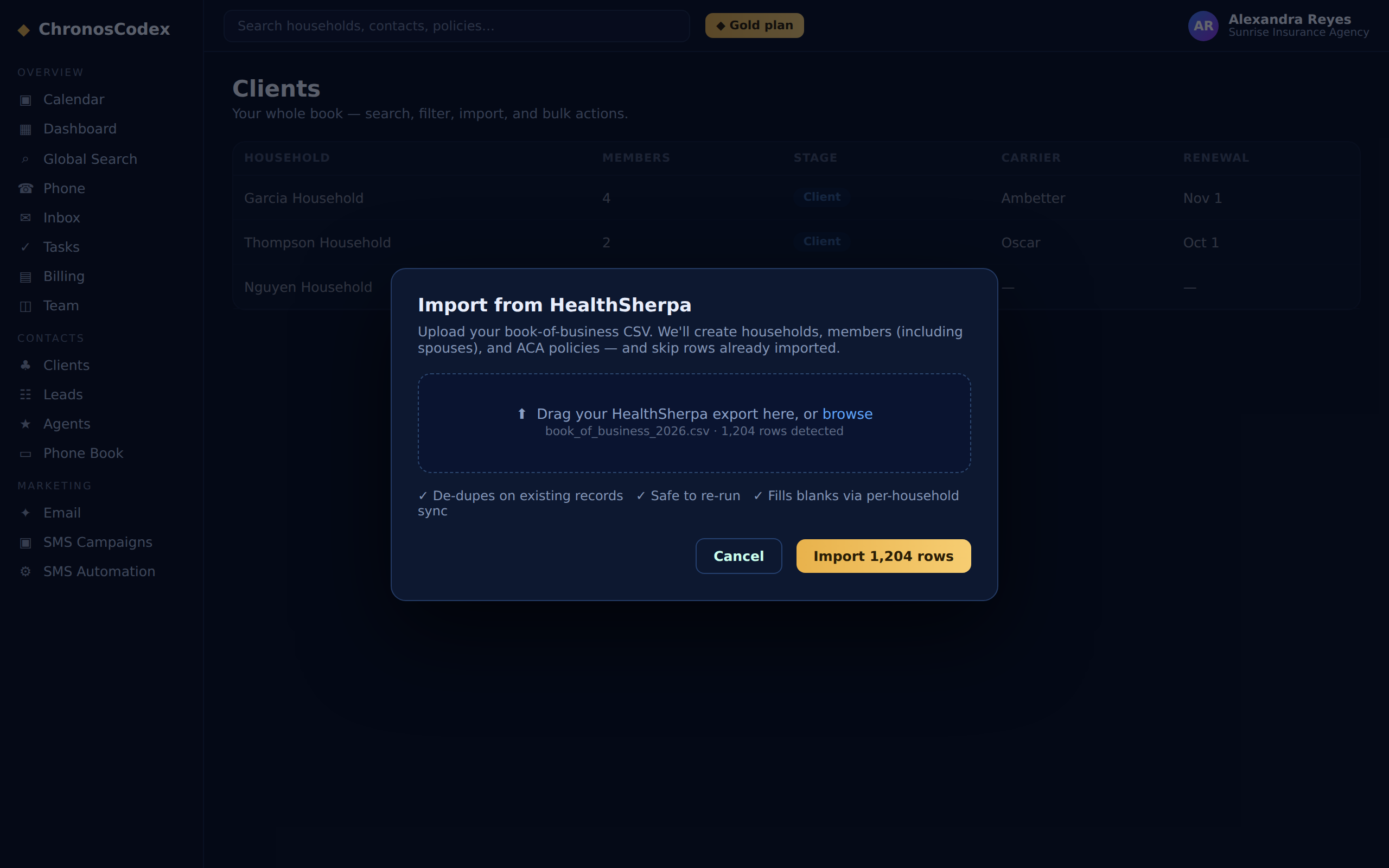
- In ChronosCodex, open Clients → Import from HealthSherpa, upload the file, and click Import book of business.
The import creates households, members (including spouses), and ACA policies — and it's safe to re-run: rows already imported are skipped, and the per-household Sync from HealthSherpa button fills blank fields without overwriting anything you've edited.
What a good CSV looks like
The standard HealthSherpa client export works as-is (names, DOB, phone, plan, premium, effective date, transaction id). If the upload is rejected, you likely exported a different report — re-download the book-of-business CSV.
After the import
- Spot-check a few households: members, policies, premiums.
- Set stages (most imports are clients) and assign AORs if you have multiple agents.
- From here, renewals, campaigns, and automation can see your whole book.
Connect HealthSherpa for live ACA quoting
Importing brings your book in. Connecting your agency's HealthSherpa API key lets you quote with it, too.
- Create an API key for your HealthSherpa agent account (HealthSherpa's developer portal).
- In ChronosCodex, an owner or admin opens Integrations → HealthSherpa, clicks Add HealthSherpa key, pastes it and clicks Save and check. ChronosCodex confirms the key with HealthSherpa before saving it.
- Open any client and go to Coverage → ACA Quote, or use ACA Quick Quote in the menu for someone who is not a client yet.
Quotes are saved to the household with a reference number. For a quote, only ZIP, county, ages, tobacco use, household size and income are sent to HealthSherpa; names, dates of birth and Social Security numbers are not. The Policies tab can also show HealthSherpa policy status once HealthSherpa enables policy-status access for your key. Available on all plans; your own HealthSherpa account is required. ChronosCodex is not affiliated with or endorsed by HealthSherpa.
Other sources
Generic CSV import is available for contact lists; for anything unusual (other CRMs, spreadsheets with custom layouts), open a support ticket and the team will advise on mapping.
Ready to put this to work? Launch ChronosCodex and follow along in your own workspace — or learn about the platform if you don't have one yet.